Category Archives: Microsoft Windows Server

ReFS versus NTFS in Microsoft Windows

ReFS

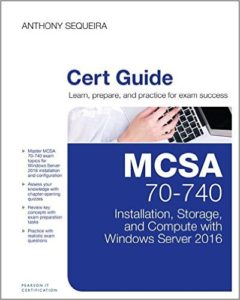
Here is an excerpt on ReFS from my book – MCSA 70-740 Cert Guide: Installation, Storage, and Compute with Windows Server 2016 (Certification Guide) 1st Edition

ReFS Overview

It is interesting that NTFS is no longer the only realistic option for file formats. Microsoft now provides a new and improved version 2 of the Resilient File System (ReFS). ReFS first appeared in Windows Server 2012. Microsoft certainly had sights initially on this file system becoming the next generation of their file system. Let us examine the current advantages and disadvantages in detail. One or more of these fine points is very likely to rear its head in a Certification Exam environment.

ReFS Advantages

ReFS has some distinct advantages over NTFS that you should be aware of:

  • ReFS gives Accelerated VHDX options in Hyper-V; these options permit massive performance increases when creating and extending a virtual hard disk, when merging checkpoints, and when performing backups.
  • A block cloning approach is key to excellent checkpoint performance.
  • Use of a 64 KB block size allows optimal performance in Hyper-V, with partition alignment handled automatically by Hyper-V.
  • When your Storage Spaces pool uses ReFS as the underlying on-disk format, it leverages new features to greatly improve the repair process.
  • ReFS v2 uses the concept of cluster “bands” to group multiple chunks of data together for efficient I/O; this really helps with your use of data tiering[md]specifically in moving data between tiers.
  • Automatic integrity checking exists in ReFS.
  • ReFS features new data scrubbing techniques.
  • ReFS offers better protection against data degradation.
  • It features built-in drive recovery and redundancy.
  • ReFS supports up to 1 trillion terabytes.
  • You can create new volumes faster with ReFS.

ReFS Disadvantages

There are also some disadvantages to ReFS that you should be aware of:

  • It cannot replace NTFS in all scenarios.
  • You cannot use it with Clustered Shared Volumes.
  • There is no conversion capability between NTFS and ReFS.
  • There is no file-based deduplication.
  • There are no disk quotas.
  • There are no object identifiers.
  • There is no encryption support.
  • You cannot use named streams.
  • There is no transaction support.
  • There are no hard links.
  • There is no support for external attributes.
  • There is no support for 8.3 filenames.

Pearson Education (InformIT)

Adding Active Directory to Windows Server 2016 Core

Server 2016

Overview of Active Directory and Windows Server 2016 Core

What is the trimmest, slimmest Windows Server 2016 system you can spin up these days? Well, that is Nano Server. But unfortunately, Nano Server does not support hosting Active Directory in any variation. In steps “Server Core” for Windows Server 2016. In this post, I outline just how easy it is to add Active Directory (and a Domain Controller) using this Graphical User Interface-less version of Windows Server 2016.

The Steps

How do we get Active Directory implemented in a “normal” GUI-based version of Windows Server 2016? Well of course we use the Add Roles and Features Wizard launched from Server Manager. We then engage in two steps. We add Active Directory Services, and then we promote the server to a Domain Controller. Nothing changes in Server Core! Except, since there is no GUI, we MUST use Windows PowerShell in order to perform these two steps. Interestingly, we could have done it this way in the Desktop Experience version of Windows Server 2016 as well.

Installing Active Directory with PowerShell in Server Core

In order to perform the first step, installing AD, follow these simple steps:

  1. At the Server Core Command Prompt window, launch Windows PowerShell using the powershell command.
  2. In Windows PowerShell, use the following command:
Install-WindowsFeature -Name AD-Domain-Services -IncludeManagementTools

Be sure to stick around and receive confirmation of success from the system.

Promoting Server Core to a Domain Controller

Here is the process for your second step, the promotion of the Server Core system to a Domain Controller:

  1. At the Server Core Command Prompt window, launch Windows PowerShell using the powershell command.
  2. In Windows PowerShell, use the following command:
Install-ADDSForest -DomainName nuggetlab.com

You will need to provide Directory Services Restore Mode password and press Enter.

Just as with the larger Desktop Experience version of Windows Server 2016, your nimble Server Core needs a reboot when this promotion process is complete.

Deploying and Managing Active Directory with Windows PowerShell: Tools for cloud-based and hybrid environments