
At Nerdio, we focus on turning the wealth of data available in Microsoft Intune into actionable insights—quickly and effortlessly. In this first post of an ongoing series about managing End User Computing (EUC) environments with Nerdio Manager and Microsoft Intune, we start with a deceptively simple yet incredibly powerful capability: device filters.
Efficient filtering is essential for modern IT teams managing large-scale Windows, Cloud PC, and endpoint environments. Nerdio Manager takes Intune’s raw data and makes it far easier to find exactly the devices you need—when you need them.
Why Device Filtering Matters in Enterprise EUC Management
In medium to large enterprises, the number of managed endpoints can quickly grow into the hundreds or even thousands. Without strong filtering capabilities, day-to-day management becomes slow, frustrating, and error prone.
Finding a specific subset of devices—whether for troubleshooting, compliance checks, optimization, or user support—is a critical task for any endpoint management team. While Microsoft Intune does offer filters in its native device views, those filters can often fall short in real-world operational scenarios.
In fact, in the native Intune UI, you can’t even see the available filter sub-options without clicking into each filter individually. This makes it rather cumbersome to even decipher how the filters might assist you. See Figure 1.
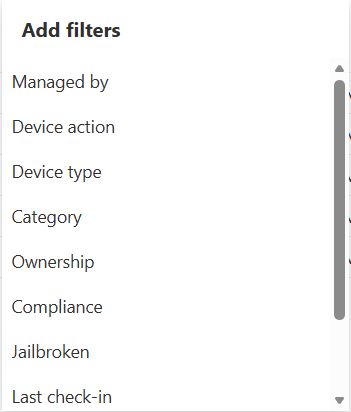
Figure 1: Adding Filters in Native Intune
Smarter, Faster Filtering with Nerdio Manager
This is one area where Nerdio Manager truly shines.
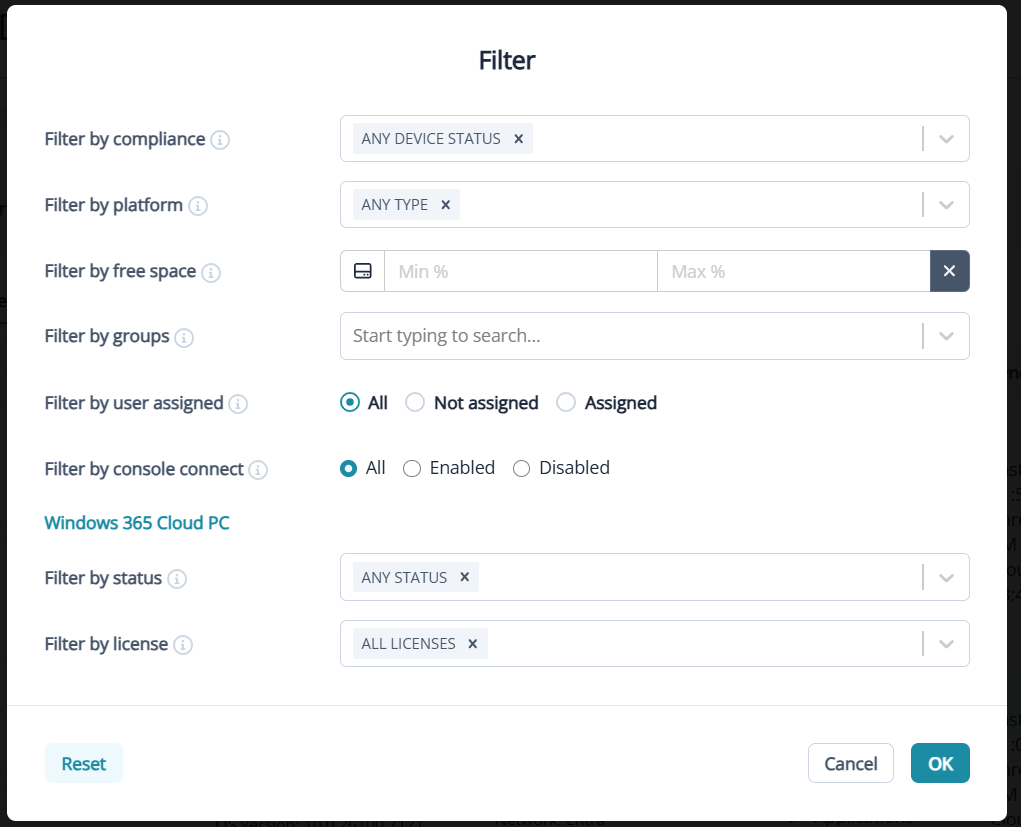
When you open the Filter option in the device view in Nerdio Manager, you’re immediately presented with clear, intuitive, and highly actionable filtering options—built specifically for how IT admins actually work.
At first glance, you’ll notice familiar filters like Compliance and Platform, front and center—exactly where you’d expect them. But as you explore further, the real power becomes obvious.
Advanced Filtering Options You’ll Actually Use
With Nerdio Manager, you can instantly filter devices based on scenarios that matter in real EUC operations, such as:
- Devices with too much disk space provisioned
- Devices with insufficient disk space provisioned
- All systems belonging to a specific device group
- All systems assigned to a particular user group
- Devices that are unassigned to any user
- Systems properly configured for Console Connect
- Cloud PCs by provisioning status (Not Provisioned, Provision Pending, and more)
- Cloud PCs by license type
These are not just “nice-to-have” filters—they directly support capacity planning, cost optimization, troubleshooting, compliance validation, and user support.
Built for Real-World IT Teams
One of the key advantages of Nerdio Manager is how closely the product evolves alongside customer needs. Our teams listen carefully to how administrators manage EUC every day—and then implement the filters and views that make the biggest difference.
Because Nerdio can iterate on software and UI improvements quickly, new capabilities can be delivered far faster than changes in native tooling alone.
The result? Less time searching, fewer clicks, and more time actually solving problems.
What’s Next in the Nerdio Manager + Intune Series
This post is just the beginning. In upcoming articles, we’ll continue exploring how Nerdio Manager enhances Intune-based EUC management—covering topics that help IT teams work smarter, not harder.
Thank you for reading this first post in our Nerdio Manager and Intune series. We’re excited to share more tips, features, and best practices as we continue the journey toward EUC management bliss.